Guides › The auto clicker and key presser
The auto clicker and key presser
What each setting does, and how the random variation works.
The auto clicker
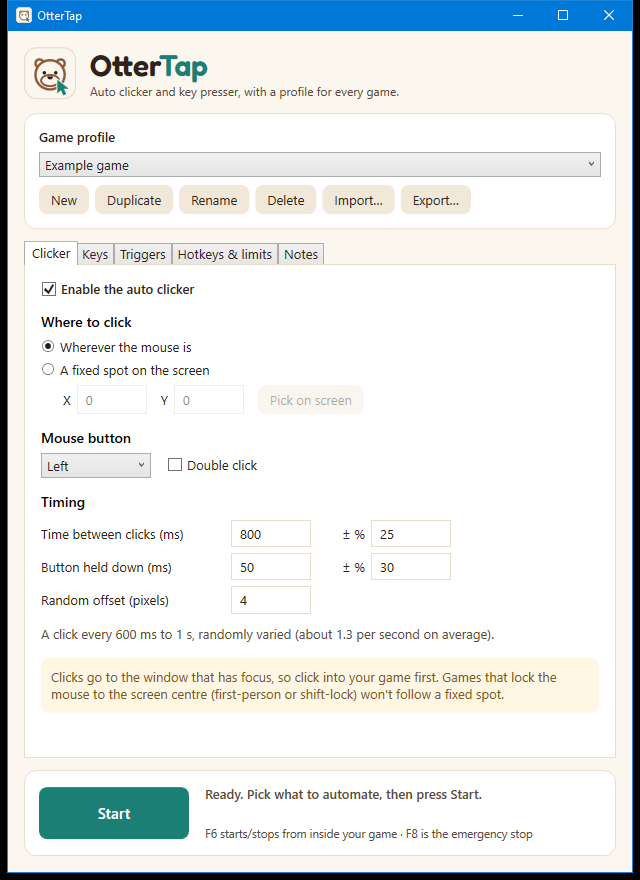
Where to click
- Wherever the mouse is. OtterTap clicks at the cursor. If you move the mouse during a run, it follows.
- A fixed spot on the screen. Click Pick on screen, move your mouse to the spot, then press F7. Press Esc to cancel. (If F7 is one of your hotkeys, F10 is used instead.) You can also type the X and Y numbers directly.
Mouse button
Choose left, right or middle. Tick Double click to click twice in quick succession each time.
Timing
| Setting | What it does |
|---|---|
| Time between clicks (ms) | How long to wait between clicks, in milliseconds. 1000 is one second. The smallest allowed is 10. |
| ± % (next to it) | How much that time can vary, as a percentage. 800 ms with ±25% means each wait is randomly between 600 and 1000 ms. |
| Button held down (ms) | How long each click holds the button down, with its own ± variation. |
| Random offset (pixels) | How far from the target a click can land. Most clicks land near the middle and a few farther out, never beyond this distance. Set 0 for exact clicks. |
The grey line under the settings turns your numbers into plain words, for example "A click every 600 ms to 1 s, randomly varied".
The key presser
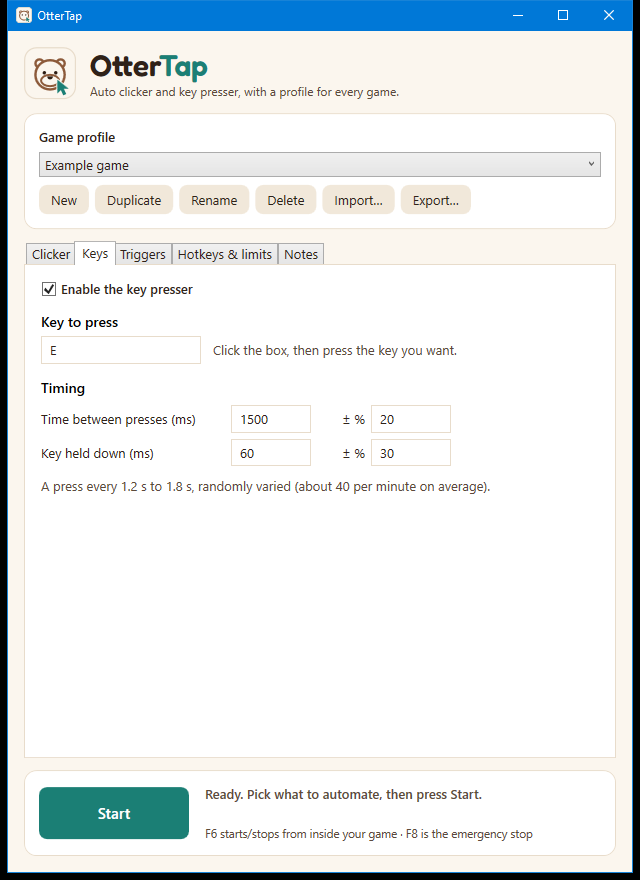
Tick Enable the key presser, click the key box, then press the key you want. It shows the key's name. The timing settings work the same way as the clicker's: time between presses, how long the key is held, and a ± variation for each.
OtterTap sends keys the way a physical keyboard does, which is what many games listen for. Combinations such as Ctrl + a key aren't supported yet.
Using both together
You can enable the clicker and the key presser at the same time, and add screen triggers on top. They each run on their own timing. When a click and a trigger want the mouse at the same moment, OtterTap makes them take turns so clicks never overlap.
Limits and stopping
Set limits on the Hotkeys & limits tab. See safety and fair play.